1. Full-screen color test
Pick a color below to fill your entire screen, then look closely for any spot that stays a different color than the rest — that's a dead or stuck pixel. After entering full-screen mode – click anywhere on the screen or use the arrow keys to browse through the colors. Exit anytime by pressing the Esc key or the close button.
2. Stuck pixel fixer
Found a pixel that's stuck showing one color? The display alternates between red, green, blue, black, and white for around one minute. This may help revive a stuck sub-pixel – though dead pixels cannot be repaired this way. It doesn't always work, but the process is safe for your screen.
Six full-screen colors
Red, green, blue, white, black, and gray — enough range to make dead, stuck, and discolored pixels stand out.
Keyboard navigation
Step through every color with the arrow keys or spacebar without having to reach for the mouse.
Stuck-pixel fixer
A rapid 60-second color flicker that sometimes coaxes a stuck sub-pixel back to normal.
Fully private
No camera, no permissions, nothing recorded — it's just colors drawn to the screen locally.
How to use the dead pixel test
Dim the room
Low glare makes faint dead or stuck pixels much easier to catch, especially on the black and white screens.
Open each color
Click a swatch to go full-screen, then work through all six colors one by one using a tap or the arrow keys.
Check corners and edges
Scan the whole screen, not just the center — pixels near the bezel are the easiest ones to miss at a glance.
Try the fixer if needed
Spotted a stuck pixel? Run the 60-second flicker fixer, then rerun the color test to see if it helped.
What Is a Pixel and How Does It Work?
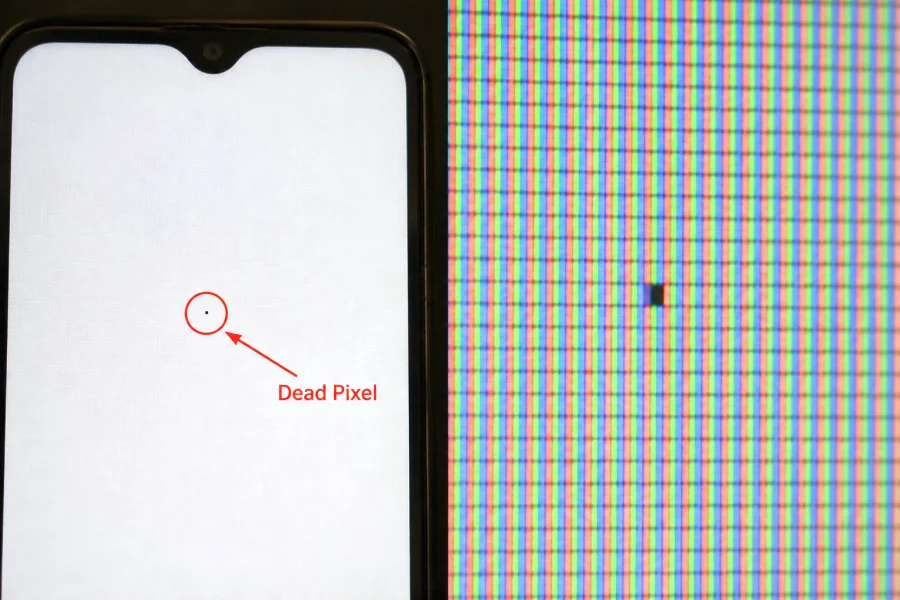
A pixel — short for "picture element" — is the smallest point of light on your screen. Each one is made of three sub-pixels (red, green, blue); mixing their brightness creates every color you see, from white (all on) to black (all off). Resolution just means how many pixels are packed in — 1920×1080 is over two million of them.
LCD screens shine a constant backlight through each pixel like a tiny shutter. OLED pixels generate their own light and switch on individually — which is why OLED blacks look truly black instead of dimly lit.
What Is a Dead Pixel and Causes
A dead pixel is a single pixel that never receives power at all, so it stays permanently black no matter what color is displayed around it — easiest to spot against a bright white or colored background, where it shows up as a tiny black dot. That's different from a stuck pixel, which is still getting power but has one sub-pixel locked on, showing up as a persistent red, green, or blue dot instead. The distinction matters, because as the section below explains, the two have very different odds of being fixed.
Dead pixels usually trace back to one of a handful of causes:
- Manufacturing defects — by far the most common cause. A transistor controlling that one pixel can fail to form correctly during production, or its connection can be faulty from the start, which is why some brand-new screens arrive with a dead pixel already present.
- Physical impact or pressure — a hard knock, a drop, or something pressing on the screen (a bag, a keyboard against a closed laptop lid) can damage the delicate layer of transistors underneath the glass.
- Age and wear — panels can develop dead pixels over years of use as components slowly degrade, though this shows up far less often than a manufacturing defect does early on.
- Electrical faults — a power surge or a fault in the display's driver circuitry can occasionally knock out an individual pixel's connection.
How to Fix Dead Pixels on Your Screen: Causes & Solutions
Whether a dead pixel can be repaired depends on the type of fault. A stuck pixel still receives power and may respond to the methods below – while a dead pixel no longer receives power and usually cannot be fixed through software. Not sure which? Run the color test above — a stuck pixel shows the same color on every background, while a dead pixel stays black on all of them.
For a stuck pixel, try these in order:
- Run a pixel-fixing flicker tool (like the one on this page) — rapidly cycling red, green, blue, black, and white for a minute or two sometimes "wakes up" a sub-pixel that's stuck rather than truly dead.
- Try gentle pressure — power off the screen, lightly press the exact spot with a soft cloth-wrapped fingertip for a few seconds, then power back on. This genuinely works often enough to be worth trying, but press gently — too much force can create more dead pixels than it fixes, especially on OLED panels.
- Give it time — some stuck pixels resolve on their own after a few days of normal use, for reasons that aren't fully understood.
For a dead pixel, your realistic options are:
- Check your warranty and dead-pixel policy — most manufacturers replace a display once it has more than a small number of dead pixels, often somewhere between three and ten depending on the brand and screen size. Check this before your return window closes.
- Professional repair or panel replacement — the only guaranteed fix for a genuinely dead pixel, and usually only worth it on higher-end displays where the panel itself can be replaced.
- Live with it — for a single dead pixel outside your warranty window, most people find it becomes invisible once they stop consciously looking for it.
Frequently asked questions
What's the difference between a dead pixel and a stuck pixel?
A dead pixel gets no power at all, so it stays black no matter what color is on screen around it. A stuck pixel is still getting power but one of its sub-pixels is locked on, so it shows up as a tiny red, green, or blue dot that doesn't change when the background does.
How do I actually run this test properly?
Dim the room if you can, open each color full-screen, and look closely from your normal viewing distance — pay extra attention to the corners and edges, since that's where dead and stuck pixels are easiest to miss. Go through all six colors; a pixel that hides on gray can stand out clearly on black or white.
Can the stuck-pixel fixer damage my screen?
No. Rapidly flashing red, green, blue, black, and white is a long-standing technique for trying to jolt a stuck sub-pixel back to normal, and it's harmless to a modern LCD or OLED panel for the short time it runs. There's no guarantee it'll fix anything, but there's no risk in trying it.
Does this work on phones and tablets?
Yes. It works in modern mobile browsers like Chrome and Safari. Some mobile browsers don't allow true OS-level full-screen for a webpage, so the color instead fills the whole visible browser viewport, which works just as well for spotting pixels.
Is this safe to use on an OLED screen?
Yes, the same test works fine on OLED and curved monitors. Burn-in on OLED comes from the same static image being displayed for very long stretches, usually hours at a time, so a quick pixel check well within that window isn't something to worry about.
I found one dead or stuck pixel — is my monitor faulty?
Not necessarily. A single dead or stuck pixel is common enough that most manufacturers only cover replacements once a display has more than a small number of them, often somewhere between three and ten depending on the brand and screen size. Check your manufacturer's dead-pixel policy and your return window before assuming it needs to go back.