Click Start
Allow microphone access when your browser prompts you.
Speak Naturally
Watch the waveform and volume meter react to your voice in real time.
Record & Save
Capture a short sample, play it back, and download it if you want.
🎧 Your recording
Why Use Our Mic Test?
Everything you need to test, analyze, and improve your microphone — fast, accurate, and 100% private.
Live waveform
A real-time oscilloscope shows exactly what your mic is picking up.
Volume meter
An instant level indicator confirms your mic is at a healthy volume.
Record & download
Capture a sample, play it back, and save it as an audio file.
Fully private
Everything runs locally. Nothing is uploaded or stored on a server.
Browser compatibility
Works in Chrome, Firefox, Safari, and Edge — on Windows, Mac, or Linux — no extensions required.
Fast & lightweight
No installation, no sign-up. Instantly test your mic in seconds — right from your browser.
How it works
New to this? Here's how to run a quick voice mic test — a full microphone input test — in four steps.
Start the test
Click “Start mic test” and allow microphone access when your browser asks.
Speak
Talk normally. Watch the waveform move and the volume meter rise.
Record
Hit “Record”, say a few words, then stop to hear it played back.
Download
Save the clip to your device to share or keep for reference.
Features
100% Free
No sign-up, no trial, no hidden cost.
Private by Design
Runs locally — nothing leaves your browser.
Instant Results
See waveform and volume in seconds.
No Installs
Works straight from the browser tab.
Any Device
Desktop, laptop, tablet, or phone.
No Account Needed
Just open the page and start testing.
About 123MicTest.com
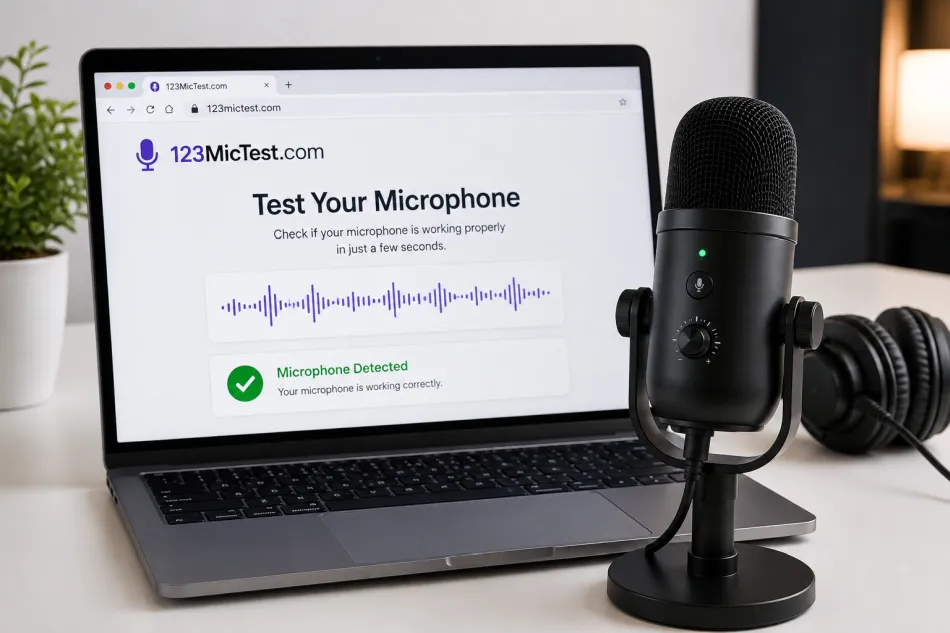
This free online mic test tool lets you quickly check if your laptop or desktop microphone is working properly. It's completely browser-based, so there's no need to download or install any third-party software. 123MicTest.com works on Windows, Mac, and Linux, making it easy to test your microphone anytime. 123MicTest started out as a small weekend fix for my own annoying problem — joining a call, talking for a minute, then hearing "sorry, we can't hear you." I wanted one page that told me, before anything important, whether my mic was actually working — no app, no account, no plugin to wait for.
So that's what this is: open the tab, hit start, watch the bar move, and you know in about five seconds. It works just as well if you need to test your PC microphone at a desk as it does for a laptop's built-in mic on the go.
Everything happens right there in your browser — nothing gets sent to a server or saved anywhere, so closing the tab is like it never happened. It's a tiny tool, but if it saves you one awkward "can you hear me now?" moment before a meeting or interview, it's doing exactly what it was made for.
Tested on All Platforms
You can run this mic test wherever you work: on a desktop browser or laptop, at your desk or on the go. It's tested to check microphone online reliably across the browsers and operating systems people actually use, so it should just work the moment you open the tab.
Desktop browsers
Operating systems
Why Should You Test Your Microphone?
Most people only think about their mic after something's gone wrong. I've been on calls where nobody responded to a single thing I said, then realized thirty seconds in that I'd never actually unmuted. A quick test beforehand would've saved that.
It matters most right before interviews, client calls, or recording something you can't redo — audio you never captured properly can't be fixed later the way a bad camera angle can. A quick webcam mic test before a video call catches the same wired-backward headset or blocked permission that would otherwise ruin a first impression. Gamers run into a smaller version of the same problem: your team isn't ignoring you, your mic just never turned on.
Then there's the boring stuff — a loose cable, an app that quietly switched your input device, a permission you forgot you'd blocked. None of it shows up until you try to use the mic, usually right when you need it most. That's really the only reason this page exists: get that check out of the way in five seconds instead of finding out the hard way.
Frequently asked questions
Is my audio uploaded anywhere?
No. The entire test runs inside your browser using the Web Audio and MediaRecorder APIs. Your microphone audio and any recording you make never leave your device.
Why does the browser ask for permission?
Browsers require your explicit consent before any site can access the microphone. This is a security feature. If you accidentally blocked it, click the padlock/mic icon in your address bar, allow access, then reload.
The meter doesn't move — what's wrong?
Check that the correct input device is selected in the dropdown, that your mic isn't muted (hardware switch or OS setting), and that no other app is exclusively using it. Try unplugging and reconnecting, or picking a different device.
What file format is the recording?
It downloads as a WebM or OGG audio file (whichever your browser supports), which plays in most modern media players and browsers.
Does this work on my phone?
Yes. It works in modern mobile browsers such as Chrome and Safari. You'll be prompted to allow microphone access the same way as on desktop.
Is 123MicTest actually free to use?
Yes, completely — there's no free trial, no premium tier, and no limit on how many times you test your mic. You won't be asked to sign up or pay to unlock recording or downloads either. The site is supported by ads rather than subscriptions, which is also why we never need your audio: nothing about how this tool makes money depends on collecting or storing what your microphone picks up.
Can I check microphone online without installing anything?
Yes. 123MicTest is built to check microphone online directly in your browser tab — there's nothing to install, no app, and no plugin to wait for. Open the page, click Start, and you'll see results immediately.
What is a microphone input test actually checking?
A microphone input test confirms three things at once: that your browser can access the correct input device, that the device is picking up sound at a healthy volume, and that a recording made from it plays back correctly. If any of those fail, you'll see it on screen before you rely on the mic for something important.